Upload your first dataset (UI upload + browse)
Outcome: complete this walkthrough and you will have uploaded your first dataset into your managed S3 bucket and browsed + previewed it in the Files view · Time: ~3 min
Before you start
-
Role: editor or higher
-
You have a demo-tenant account with the Editor role (or higher)
- The bundled sample CSV (preconfig/hello-datasets.csv) — no download needed
- A browser tab signed in to the platform console
Steps
1. Open the Files tab
In the left sidebar under Data, click Catalog. Then in the main pane click the Files tab (folder icon). Your Managed bucket auto-selects.
Locator: Files tab (folder icon, next to Dashboard/Explorer)
-
You should see: The Files view opens with your Managed bucket selected and the folders/files in it listed.
-
If not: You don't see a Files tab → your role may be Viewer (read-only). You need at least Editor (see Prereqs).
2. Create your walkthrough folder
Click New Folder, type k3ld-walkthroughs, press Enter. Folders are created under data/ — click into it, then create W1-upload-browse the same way and click into it.
Locator: New Folder button → inline name input → Create/Enter
-
You should see: You land inside data/k3ld-walkthroughs/W1-upload-browse/ (empty except a .folder marker). Walkthrough data stays isolated and one folder-delete removes it all.
-
If not: New Folder missing/disabled → Editor role or catalog write feature is missing for your account.
3. Click Upload
Click the blue Upload button at the top-right of the Files pane.
Locator: Upload button (blue, top-right)
-
You should see: Your OS file picker opens. Uploads land in the folder you are browsing.
-
If not: Upload is greyed out → Editor role or catalog write feature is missing.
4. Pick the sample CSV
Choose the bundled sample: preconfig/hello-datasets.csv (a tiny 5-row CSV of sample products).
Locator: OS file picker
-
You should see: The button briefly shows Uploading… then the listing refreshes with your file.
-
If not: Upload failed alert → presigned-URL path issue; retry once. If it persists this is a platform bug — page the walkthrough owner.
5. Confirm it's there
Look at the file list inside data/k3ld-walkthroughs/W1-upload-browse/.
Locator: file row: hello-datasets.csv

-
You should see: hello-datasets.csv appears with its size (169 B). The key is data/k3ld-walkthroughs/W1-upload-browse/hello-datasets.csv.
-
If not: File not listed after refresh → re-enter the folder from the breadcrumb; then report it.
6. Preview the file
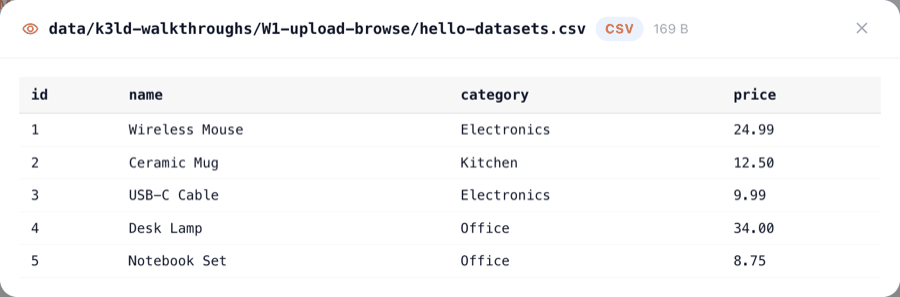
Click the eye (Preview) icon on the hello-datasets.csv row.
Locator: Preview (eye icon) on the file row
-
You should see: A preview modal opens showing the file key, a CSV badge, and a 5-row table (id, name, category, price).
-
If not: Preview errors → file type detection issue; the file itself is fine (download still works).
Expected result
When the steps are done:
- objectKey:
data/k3ld-walkthroughs/W1-upload-browse/hello-datasets.csv - visibleIn:
Files → data/k3ld-walkthroughs/W1-upload-browse/ - sizeBytes:
169 - sha256:
de660a079bdc890ff2de07b52f7050705b28bedb26f7cf4d90694d82b38e50ec
Start over & leftovers
Delete the k3ld-walkthroughs folder (the delete icon on its folder row in Files) — that removes this walkthrough's file too. Re-running with the same filename overwrites the object (idempotent). Files created via the UI under data/ are yours; the rest of data/ is shared demo data — don't delete folders you didn't create.
Try variations
- Upload a CSV/JSON of your own instead of the sample — the flow is identical.
- Use a different subfolder name (e.g. k3ld-walkthroughs/my-test) to keep your work separate.
Terms used
Managed S3data/ (default upload prefix)FilesNew FolderStorage Config
Walkthrough W1-upload-browse · verified against build frontend index-DIStcaWp (2026-09-03) · role editor. Scenario Pack source: walkthroughs/W1-upload-browse/. This page is rendered from scenario.json — edit that, not this.
Sample CSV is synthetic (no external data).