Clean and order a raw CSV with a Data Prep pipeline
Outcome: complete this walkthrough and you will have built and run a Data Prep pipeline that reads a raw CSV from managed S3, cleans it (remove duplicates on county+year), orders it (sort by year), and writes the result to a managed-S3 output — all from the UI on the Serverless DuckDB engine · Time: ~7 min active · ~10 min elapsed (waits included)
Before you start
-
Role: editor or higher
-
You have a demo-tenant account with the Editor role (or higher)
- The demo file data/county-wages.csv already exists in your managed bucket
- A browser tab signed in to the platform console
Steps
1. Open the pipeline builder
In the left sidebar under Processing, click Pipelines. A fresh Untitled Pipeline canvas opens.
Locator: Processing → Pipelines
-
You should see: The pipeline canvas opens: Pipeline Name field, + Add step, and the palette.
-
If not: Pipelines missing from your nav → role/tier lacks pipeline access (need Editor).
2. Name the pipeline
Click the Pipeline Name field and type county-wages-clean.
Locator: Pipeline Name textbox
- You should see: The header shows your name and 0 nodes · 0 edges.
3. Add the input: read from managed S3
Click + Add step. In the wizard under Get data pick Managed S3. Set File Pattern to data/county-wages.csv and Format to csv, then click Add step → and Save step.
Locator: + Add step → Get data → Managed S3 → File Pattern / Format
-
You should see: Step 01 Managed S3 is configured. The editor live-detects the schema: county_fips, year, empl, wages, wkly, annpay. 'Step 01 saved'.
-
If not: Test Pattern fails → the file isn't in your managed bucket under data/; copy data/county-wages.csv first.
4. Clean: remove duplicates
Click + Add step → under Clean data pick Remove duplicates. Set Key Columns to county_fips and year (a county+year should appear once), Keep = first. Click Add step → and Save step.
Locator: + Add step → Clean data → Remove duplicates → Key Columns
- You should see: Step 02 Dedup is configured with Key Columns county_fips, year · Keep: first.
5. Order: sort by year
Click + Add step → under Reshape pick Sort rows. Set Column to year, Direction ascending. Click Add step → and Save step.
Locator: + Add step → Reshape → Sort rows → Column / Direction
- You should see: Step 03 Sort is configured with Columns: year · Direction: asc.
6. Add the output: save to managed S3
Click + Add step → under Model & deliver pick Save to S3. Set Output Path to k3ld-walkthroughs/W8-data-prep/output (Format stays csv). Click Add step → and Save step.
Locator: + Add step → Model & deliver → Save to S3 → Output Path
-
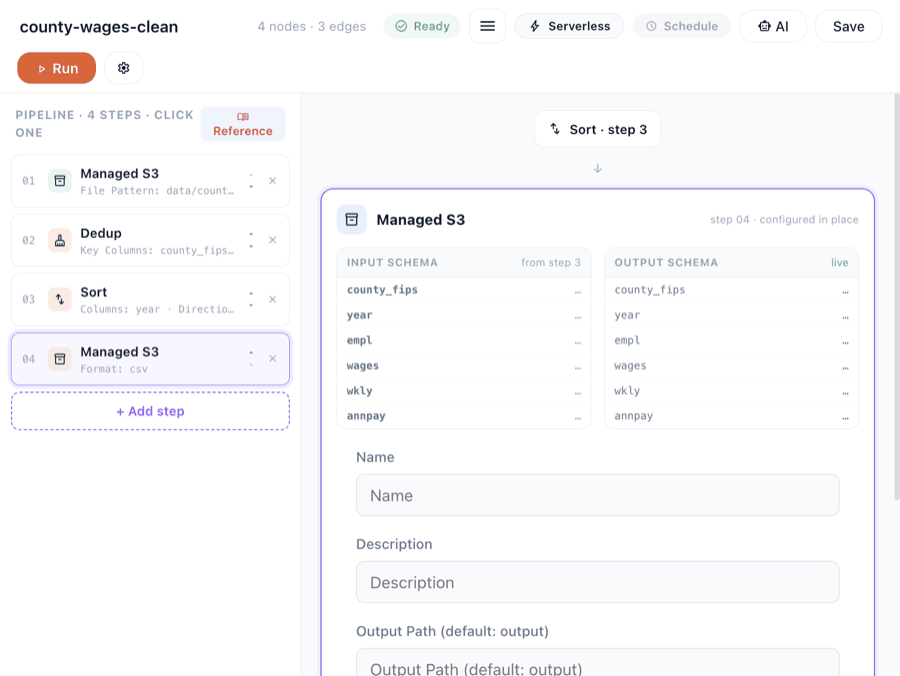
You should see: Step 04 Managed S3 (output) is added. Pipeline shows 4 nodes · 3 edges. Status becomes Ready once everything is saved.
-
If not: Leaving Output Path empty is fine too — the run writes to a per-run pipe-canvas-…/run-…/output path instead (see notes).
7. Check it's Ready
Look at the status pill next to the node count.
Locator: Ready status pill
-
You should see: Green Ready status · 4 nodes · 3 edges.
-
If not: Not Ready → open Pipeline menu → Validate → Smoke test to see the specific error.
8. Run it
Click Run. It executes on the Serverless engine (DuckDB) — seconds, no GPU.
Locator: Run (orange button)
-
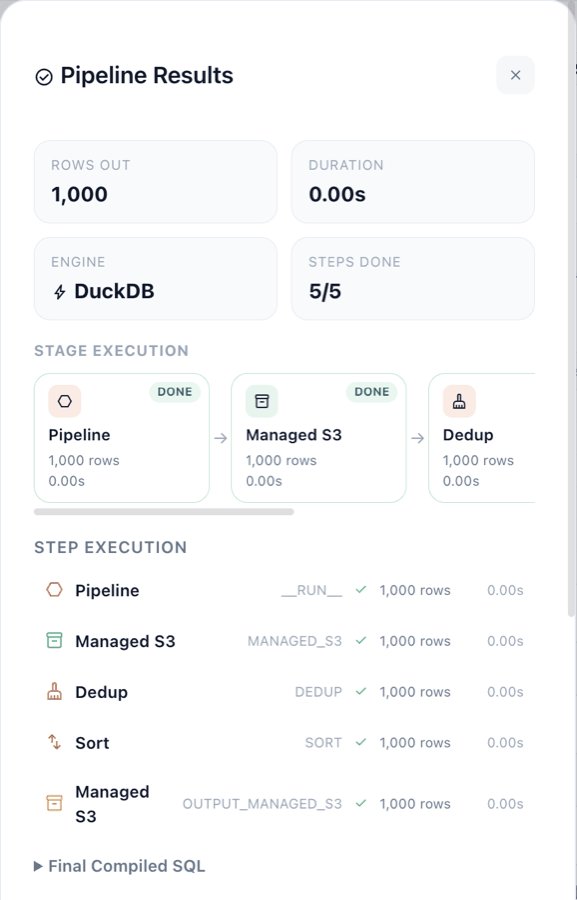
You should see: A Pipeline Results modal opens: 1,000 rows · 0.00s · DuckDB · 5/5 steps, with every stage checked — Managed S3 → Dedup → Sort → Managed S3.
-
If not: Run fails → open the failed stage's error; a missing file or bad path is the usual cause.
9. Read the result
In the results modal, expand Stage execution / Step execution to see each cleaning step's status, then expand Final Compiled SQL to see what DuckDB ran.
Locator: Pipeline Results modal
-
You should see: All 5 steps show ✓ (Pipeline, Managed S3 read, Dedup, Sort, Managed S3 write) at 1,000 rows each.
-
If not: A step shows ✗ → expand it for the error and fix that step's config.
10. Preview the output file in Files
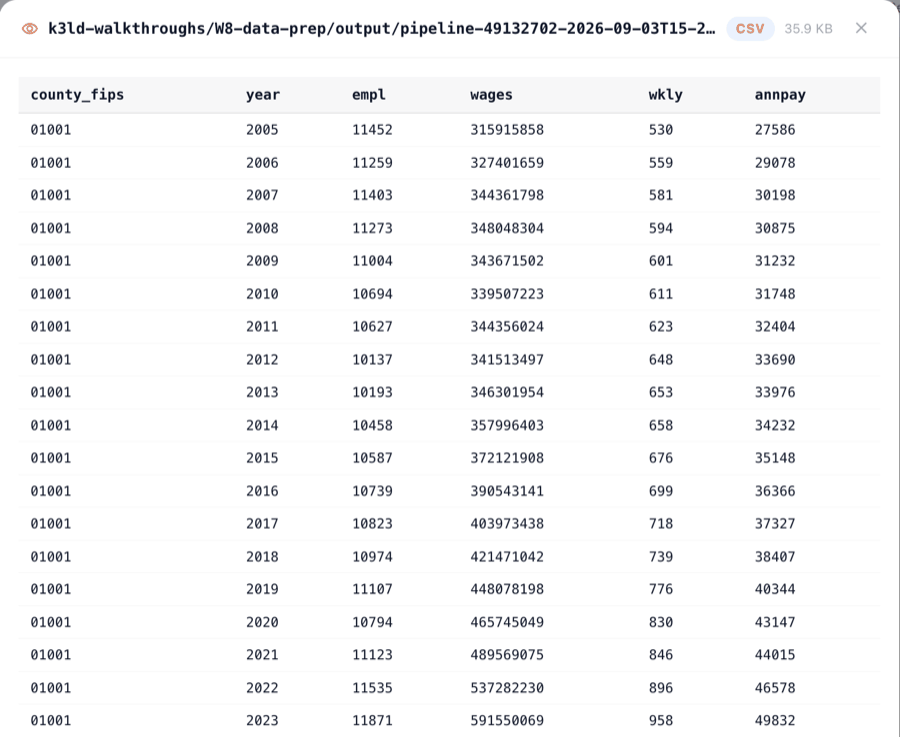
Read the success line under the results (s3://…/k3ld-walkthroughs/W8-data-prep/output/pipeline-….csv), then open Catalog → Files and navigate to k3ld-walkthroughs → W8-data-prep → output. Click the Preview (eye) icon on the CSV.
Locator: Catalog → Files → k3ld-walkthroughs/W8-data-prep/output → Preview (eye)
-
You should see: A file like pipeline-
-2026-09-03T….csv appears in that folder (the / differ every run). Previewing it shows the cleaned, sorted data: years ascending from 2005, one row per county+year. -
If not: No output file → the WRITE stage failed; check the error and the output path spelling.
Expected result
When the steps are done:
- pipelineName:
county-wages-clean - nodes:
4 - stages:
Managed S3 (read) → Dedup → Sort → Managed S3 (write) - rowsProcessed:
1000 - engine:
DuckDB (Serverless) - outputObjectPrefix:
k3ld-walkthroughs/W8-data-prep/output/pipeline-*.csv - measuredOn:
2026-09-03
Start over & leftovers
Each run writes a NEW pipeline-
Try variations
- Insert other cleaning steps between input and output (+ Add step → Clean data): Filter rows (e.g. empl > 0), Fix column types, Rename columns.
- Swap Sort for Aggregate (Summarize by group, e.g. total wages by year) to turn cleaning into analysis.
- Point the input at a glob (e.g. data/fineweb_*.jsonl) to read many files, or change output Format to parquet.
Terms used
PipelineManaged S3DedupSortSave to S3ServerlessPipeline ResultsPipeline menu → Load…
Walkthrough W8-data-prep-pipeline · verified against build server v130 + frontend (2026-09-03) · role editor. Scenario Pack source: walkthroughs/W8-data-prep-pipeline/. This page is rendered from scenario.json — edit that, not this.
Input is the demo file data/county-wages.csv (existing demo data on the tenant).